Filter and Sort
Filter
A definition typically has one main stream of objects on which operations (functions) are performed. All (if any) parallel streams are in service of the main stream. To set up all streams to be compatible with the main stream (and one another), eleFront provides a set of filter components. These filter components typically operate on a flattened list of objects. The requirements can be derived from objects in the main stream. This is a very quick and efficient way of restructuring streams of objects into compatible data trees.
Filter Objects
Filtering objects is a crucial step in synchronizing all your parallel data tree structures. In other words, it allows you to make sure that each branch in a tree will contain objects that are relevant to the objects in the same branch of any other parallel trees. But before we get to that, let’s make sure we understand what is happening.
A basic usage of filtering is to input some objects to filter and specify the condition. All objects that meet the condition will be passed through to the output of the component. There are all sorts of conditions by which you can currently filter (below).
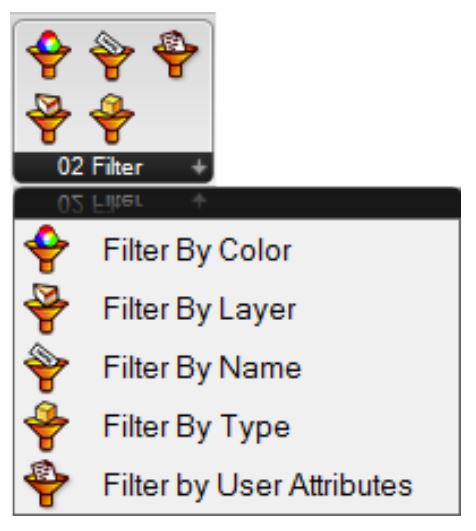
Filter Components
Filter by a Single Value
The power lies in the possibility to filter for a multitude of conditions. Each specified condition will create a new branch in the output tree. The image below shows the output of filtering a bunch of points by a single row attribute: “0”. The output is a single branch containing all point objects that have this row number assigned.
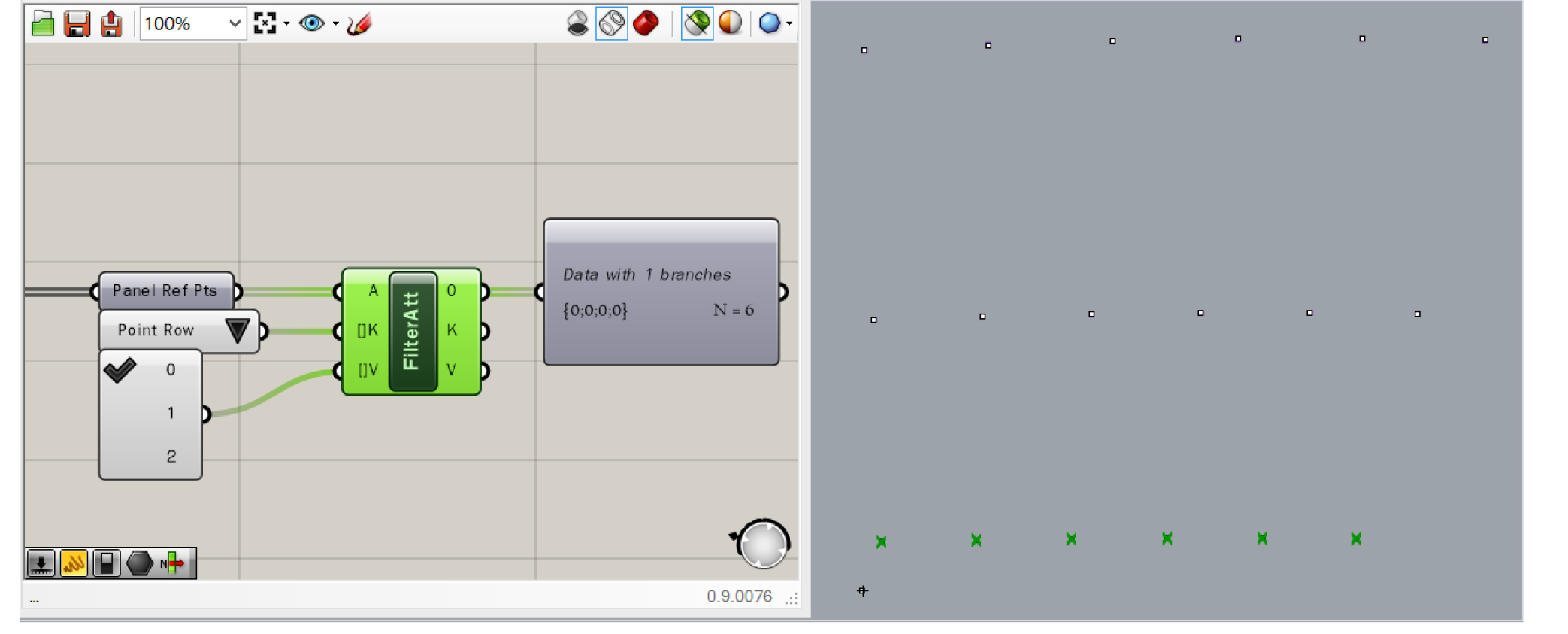 Filter single value
Filter by Multiple Values
When we provide more than one condition, filter by multiple values will return a result if any of the criteria are filled, creating a new branch for each that contains all objects that meet the respective condition. This enables us to dynamically create data trees in which all objects in each branch correspond to one or more objects in the same branch of one or more parallel trees.
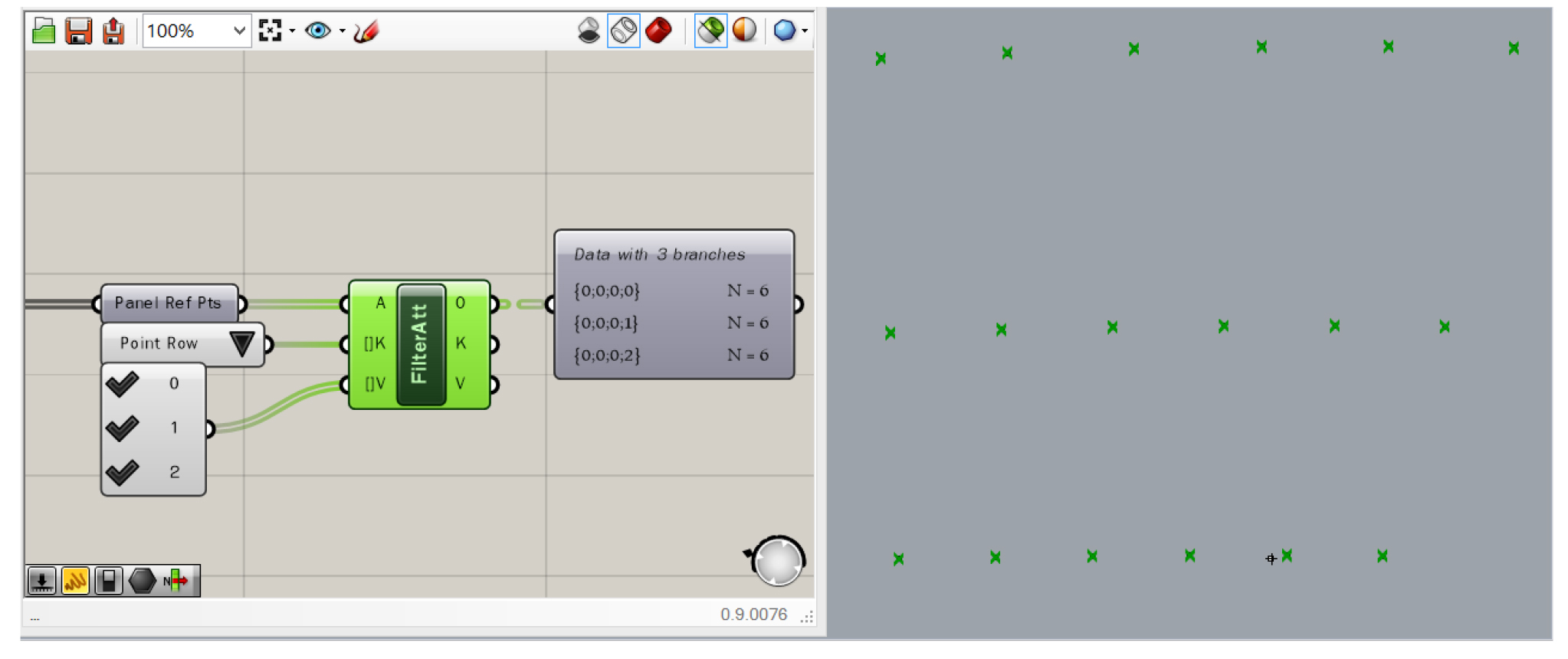 Filter multiple values
Filter with Multiple Keys
You can now filter using multiple keys at once. This will combine the keys and values to return objects that match both, not those that match either. In the example below, we see that only the circle with Row=1 and Index=B is returned, rather than returning all circles with either Row=1 or Index=B. Be sure to provide an equal number of Values as keys, otherwise eleFront will assume you are trying to filter for different Values of the same Key.
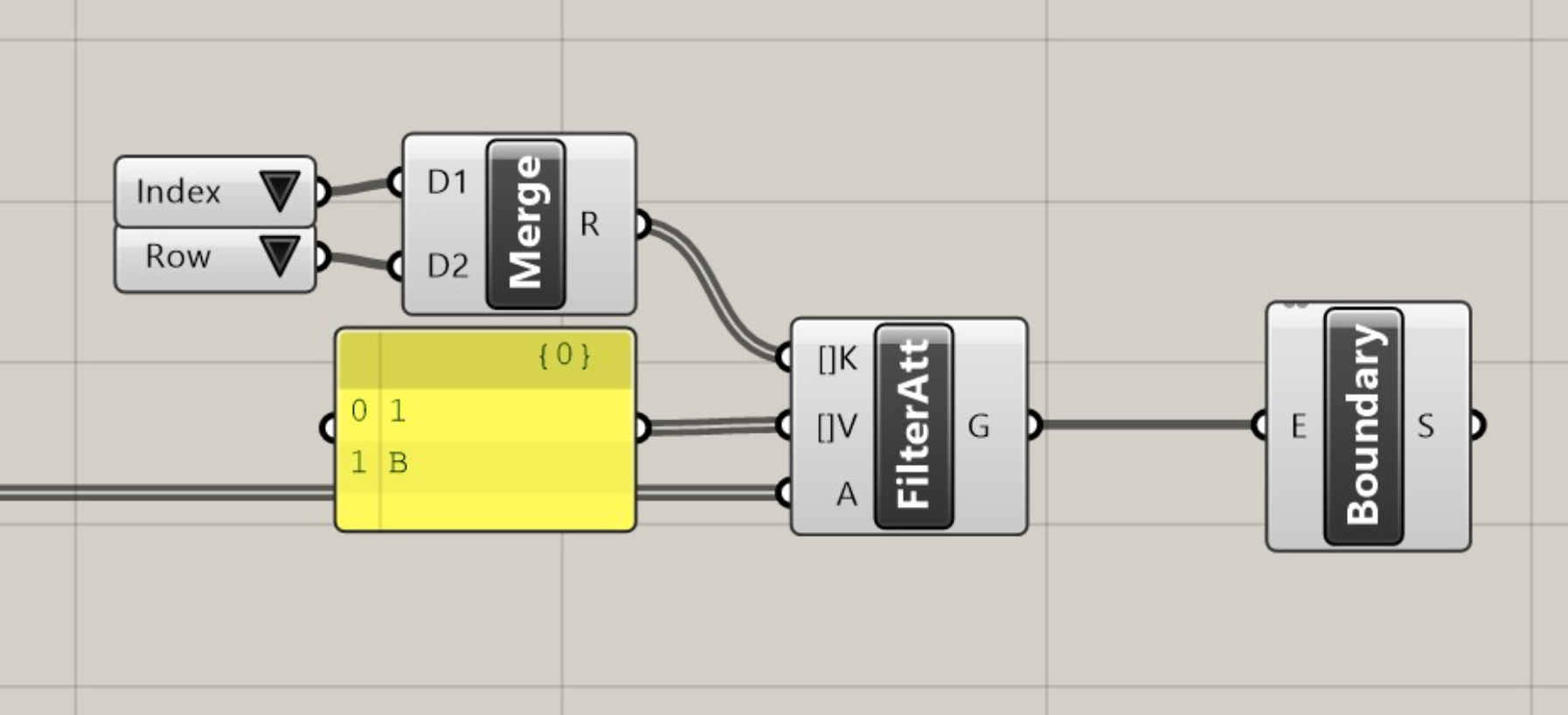
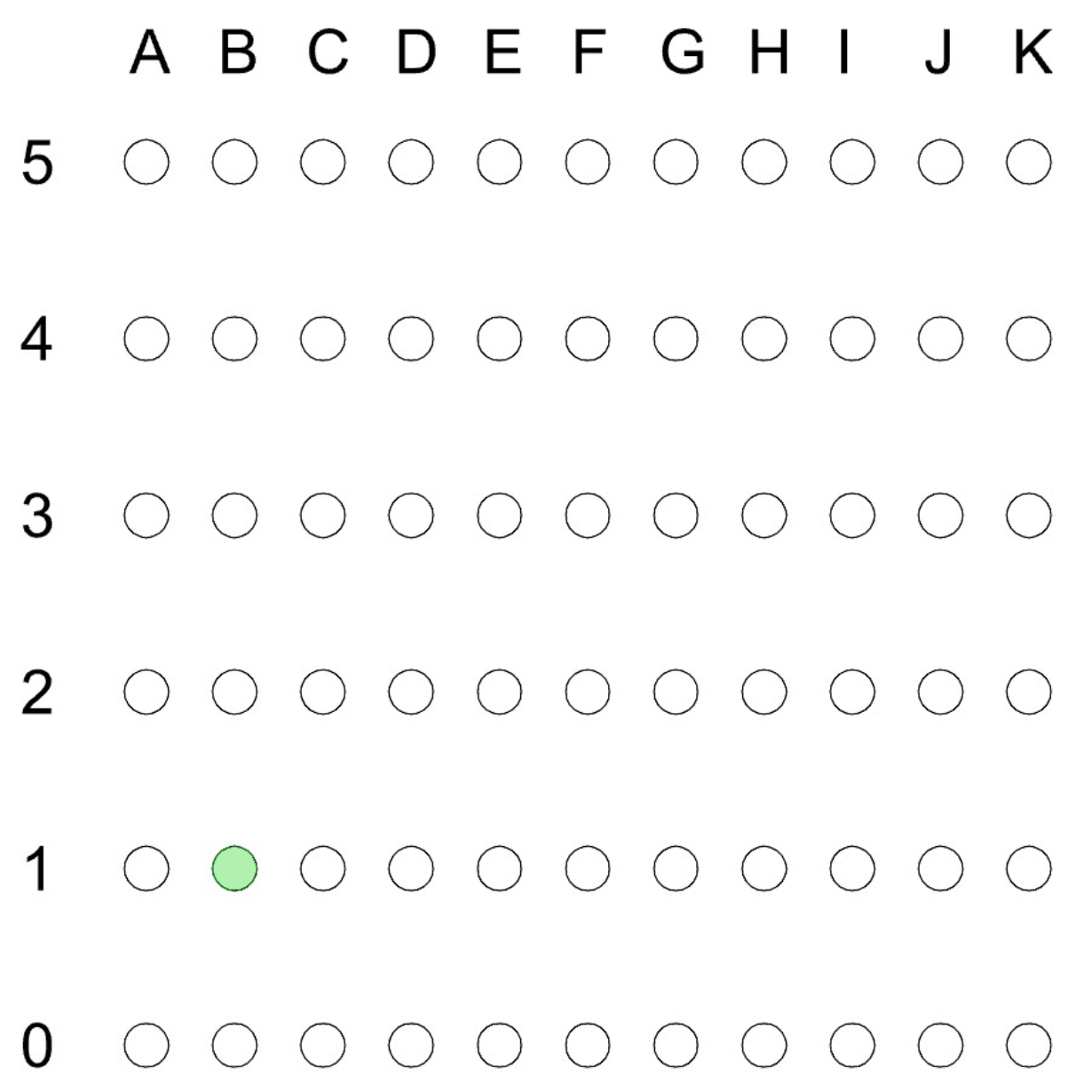
Filter multiple keys
Invert
All filtering components now feature an "Invert" option, which allows you to use the component for exclusion, rather than inclusion.
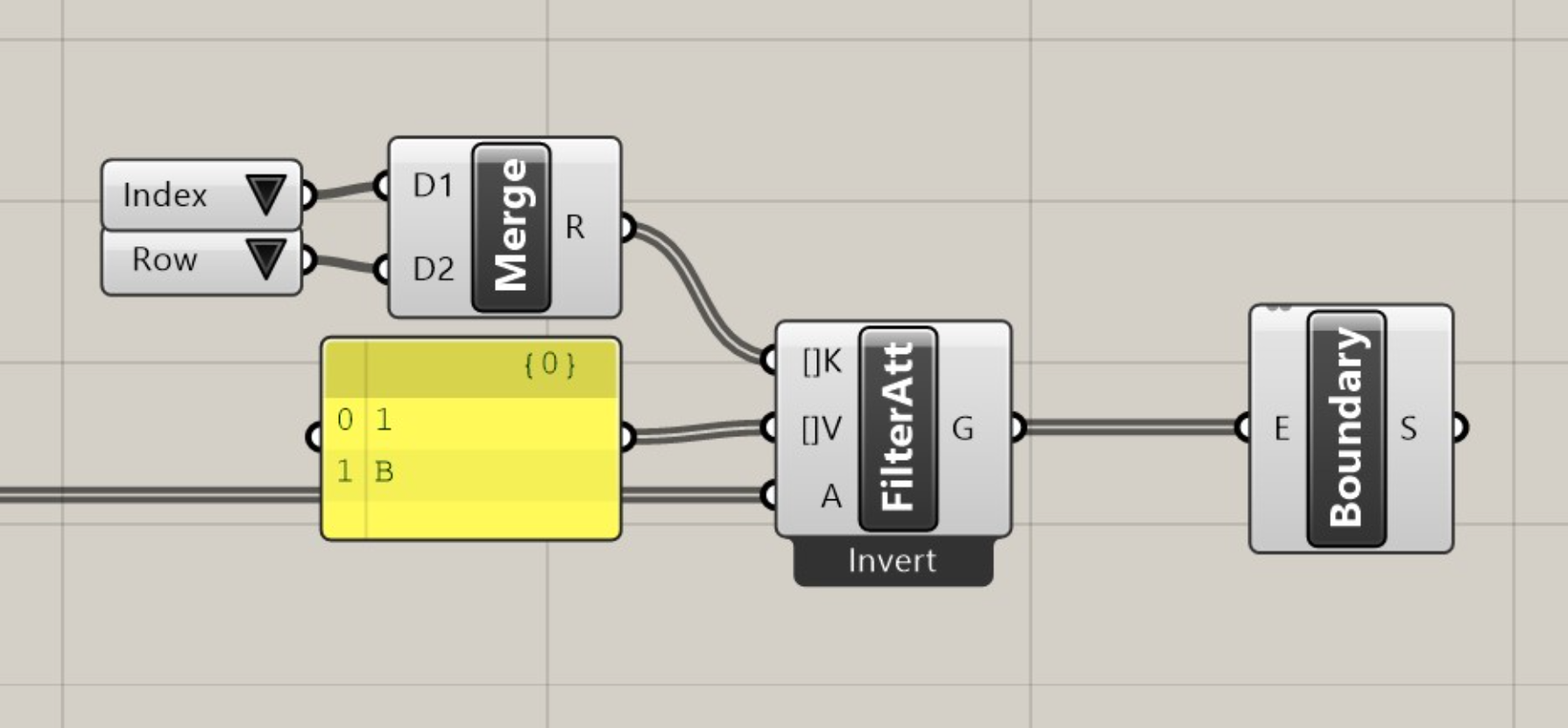
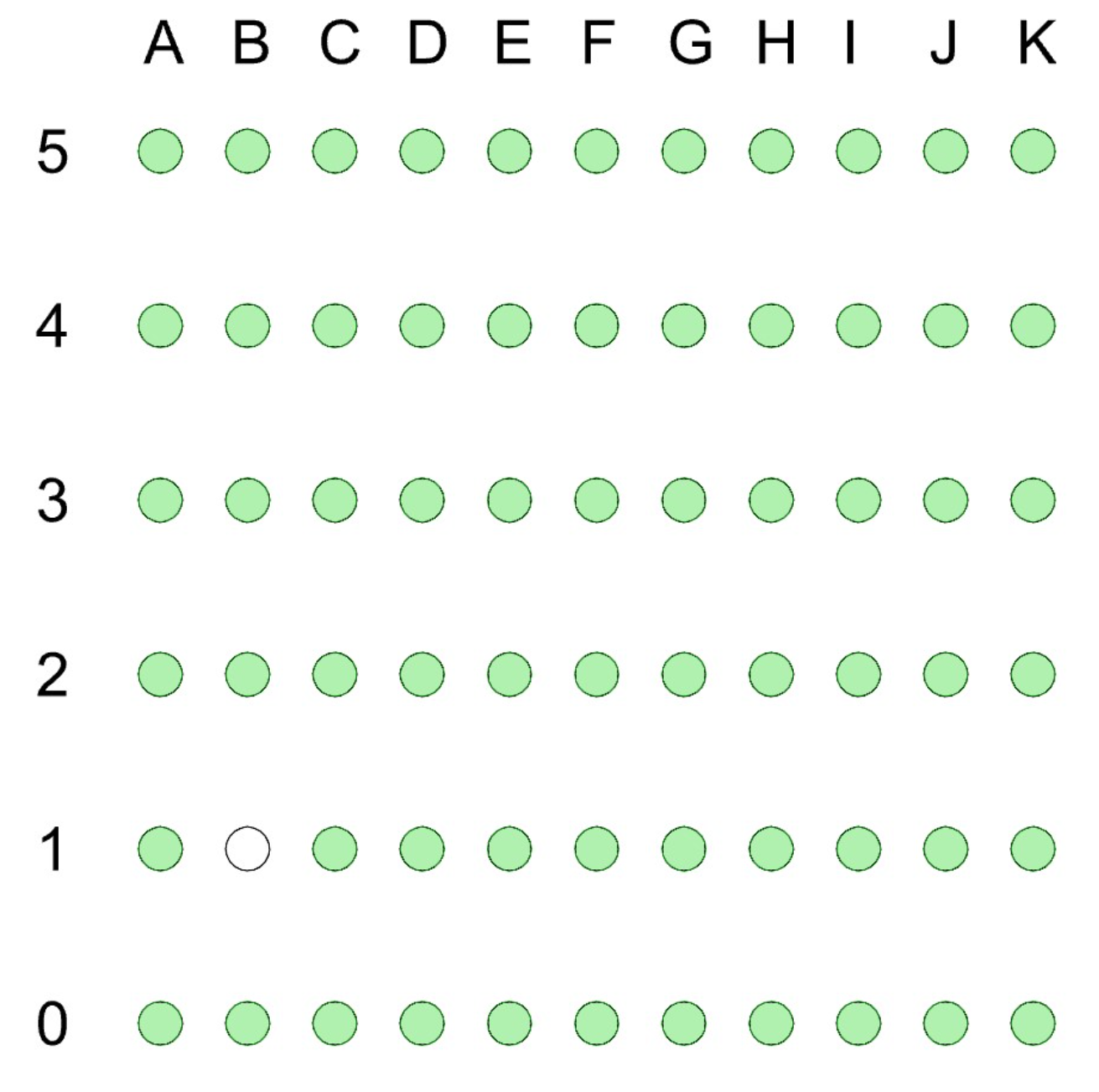 Invert filter
Parallel Filtering
There are scenarios, however, when you wish to filter objects that were just created in the active definition. These objects do not have any attributes assigned yet, as these attributes at this time exist in a parallel data tree. The Filter by User Attributes component can filter attributes while filtering any type of data in parallel. Naturally, this only works when there are as many parallel objects provided as there are attributes, and sorted in the same order. While one solution is to simply attach attributes and filter as you would any other attributed object, this is a slightly roundabout method and not all data types can have attributes applied to them.
In the example below, there are 100 attributed objects and 100 related strings (text). Using the Filter by User Attributes component we can filter the attributed geometry and the respective strings for Index "A" and "B", with both outputs having matching trees based on the input values.
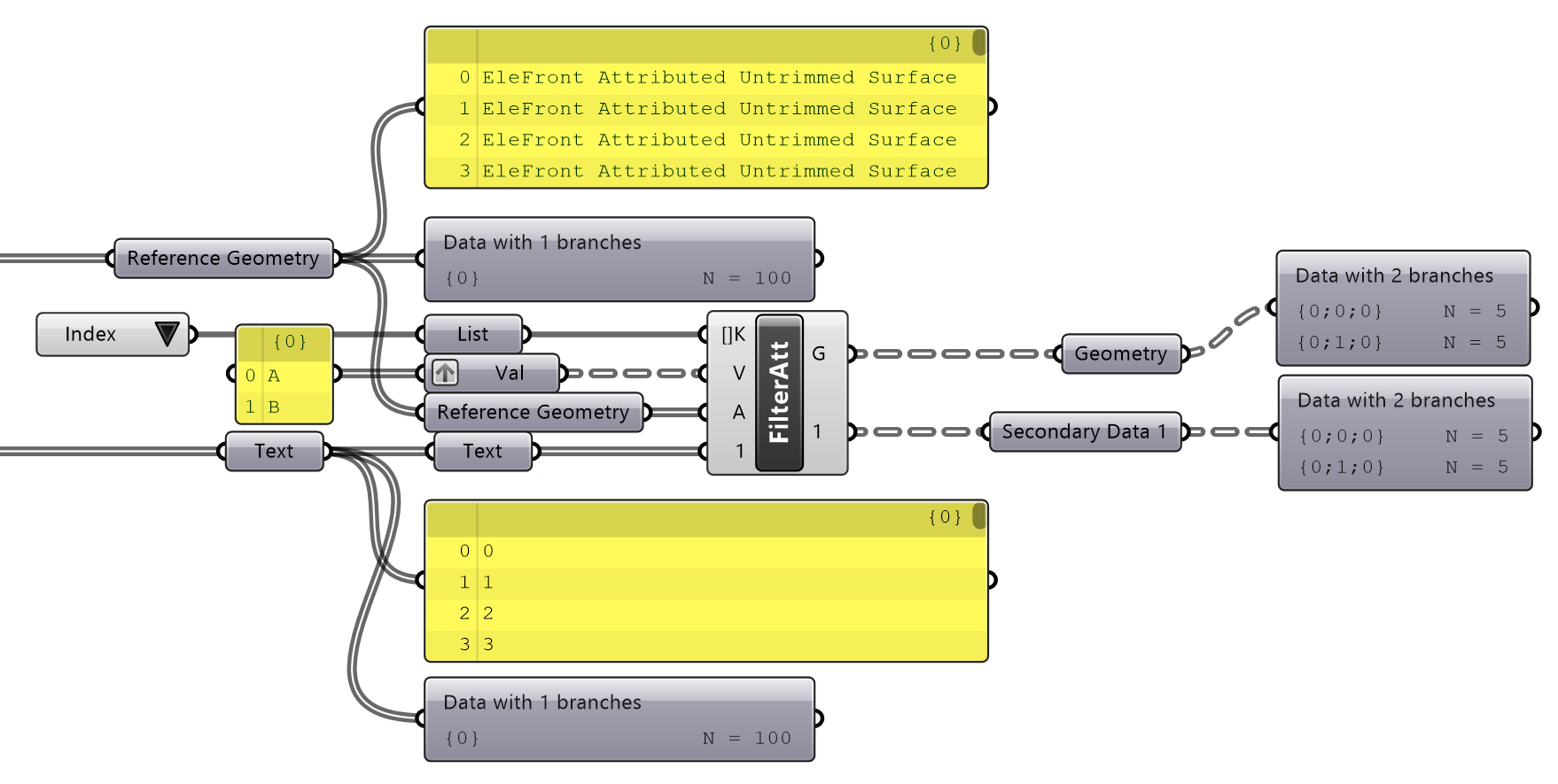 Parallel Filtering
Filtering by Rhino properties
eleFront provides various tools that allow users to filter by properties defined in Rhino, as well as those defined by eleFront.
Filter by Layer
Returns geometry which is on the layer provided as "Included Geometry". Returns all other geometry as "Excluded Geometry".
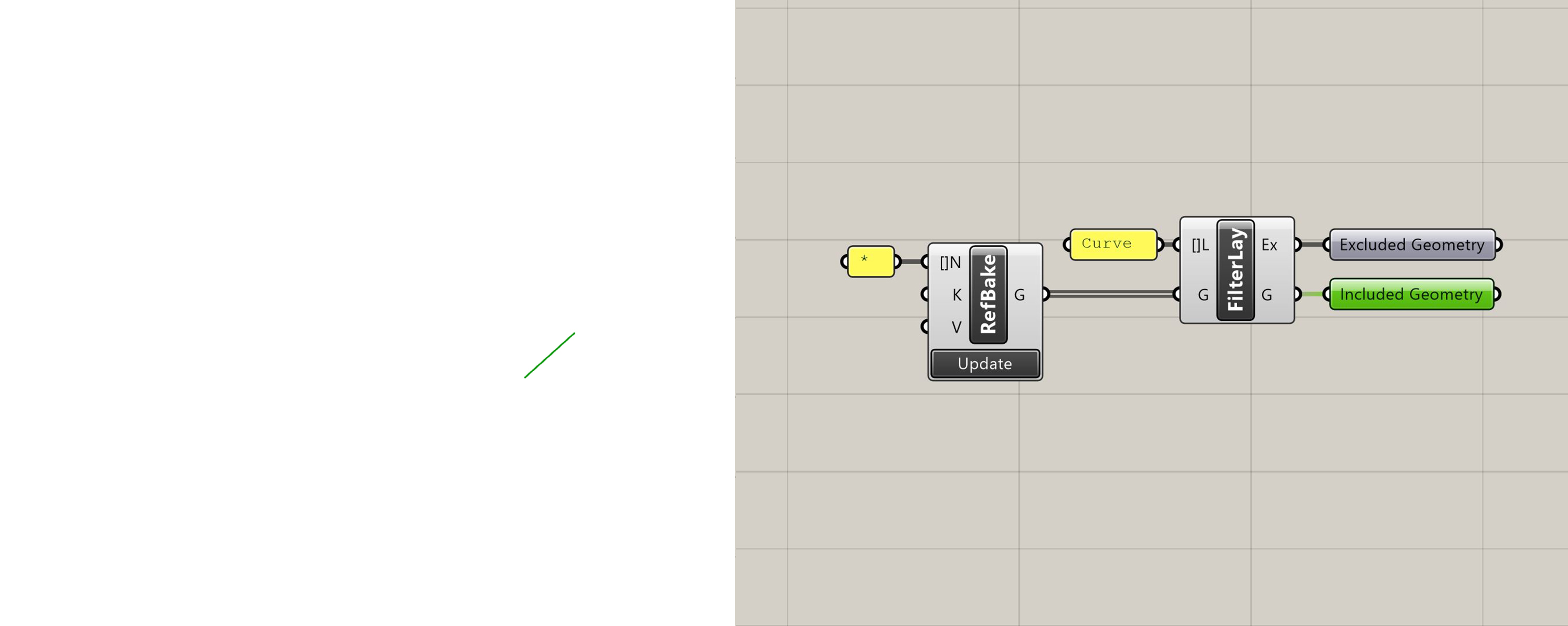
Filter by Layer with included geometry selected
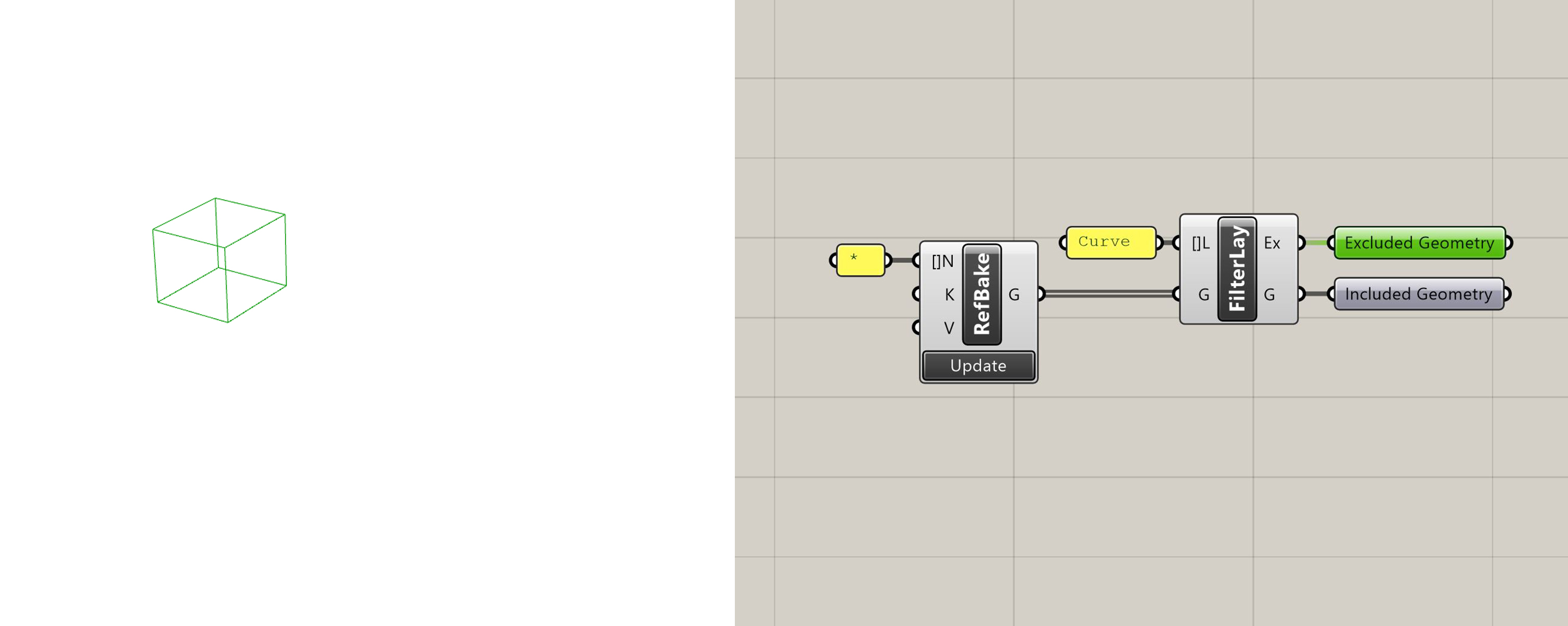
Filter by Layer with excluded geometry selected
Filter by Name
Returns geometry which has a Rhino object name that matches the one provided. Returns all other geometry as "Excluded Geometry".
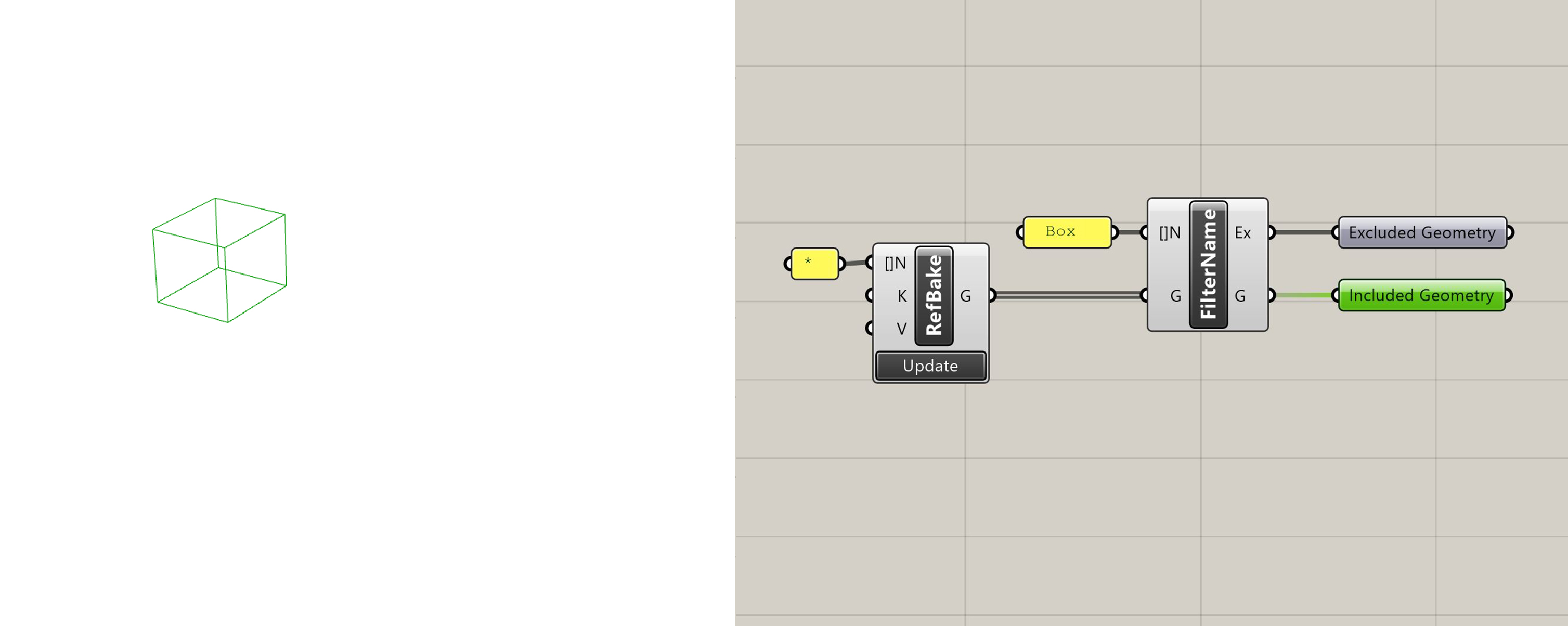
Filter by Name with included geometry selected
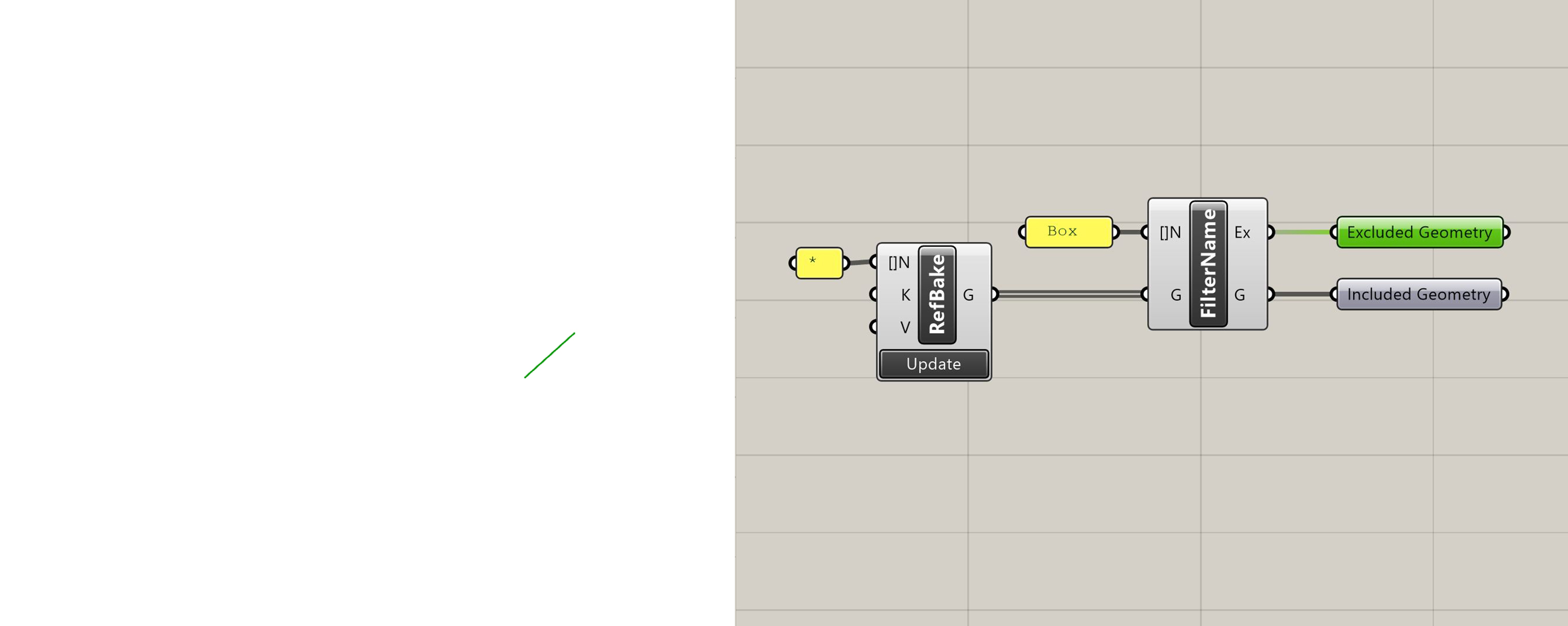
Filter by Name with excluded geometry selected
Filter by Type
Returns geometry which has a Rhino object type that matches the one provided. Returns all other geometry as "Excluded Geometry".
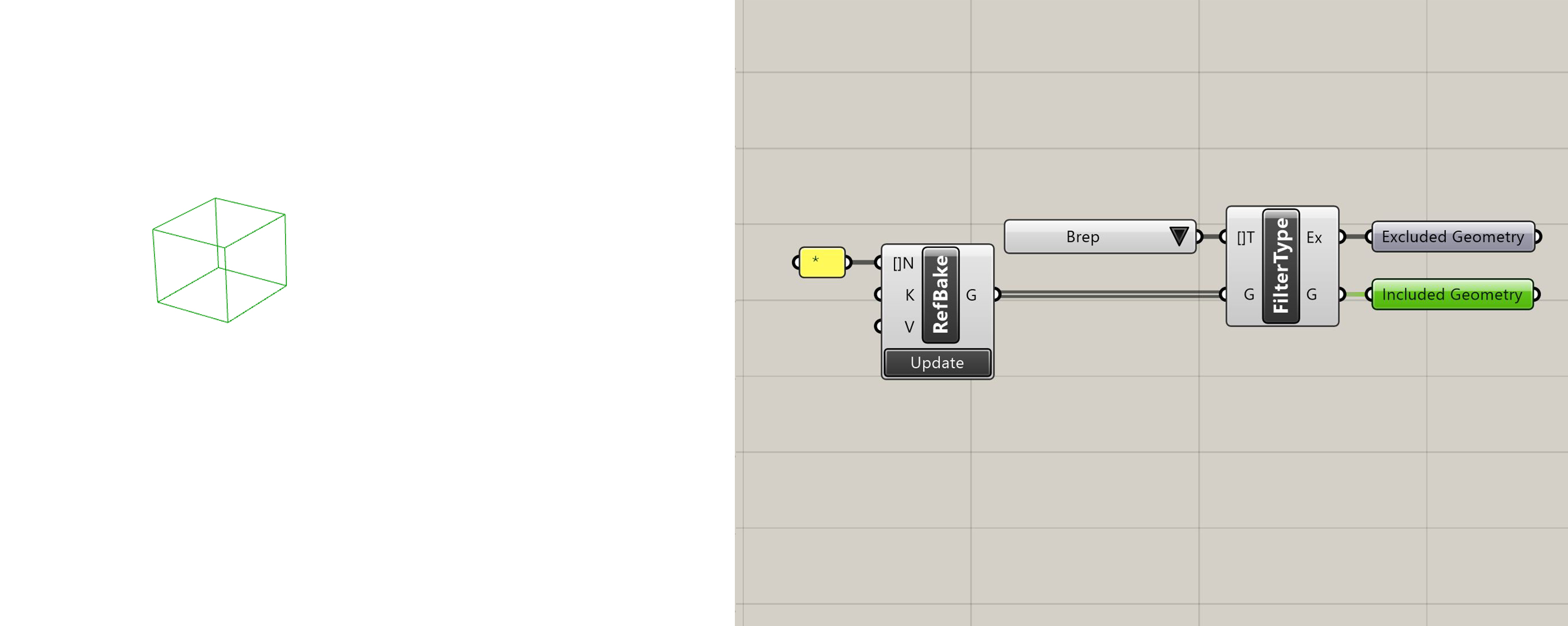
Filter by Type with included geometry selected
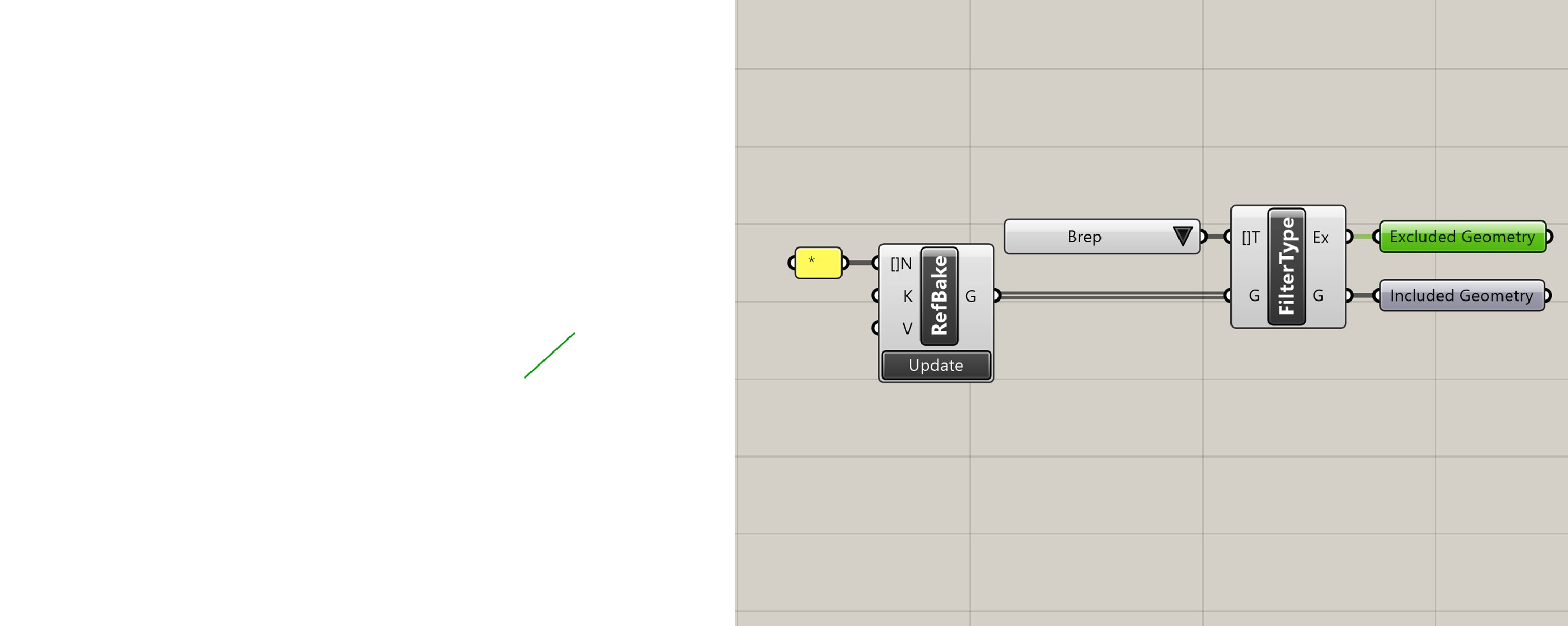
Filter by Type with excluded geometry selected
Sort by Key
Filtering with multiple inputs gives the ability to create a new branch for each value provided, however, what if there are more values than than is practical to state explicitly, or if the values are unknown or variable?
Sort by Key will sort each unique value and create a new branch for each attributed object/s that match. Its outputs are the sorted geometry and a matching tree stating its respective value. In the image below, we can see that the first branch contains all the geometry of Index = "A", the second with "B" and so on...
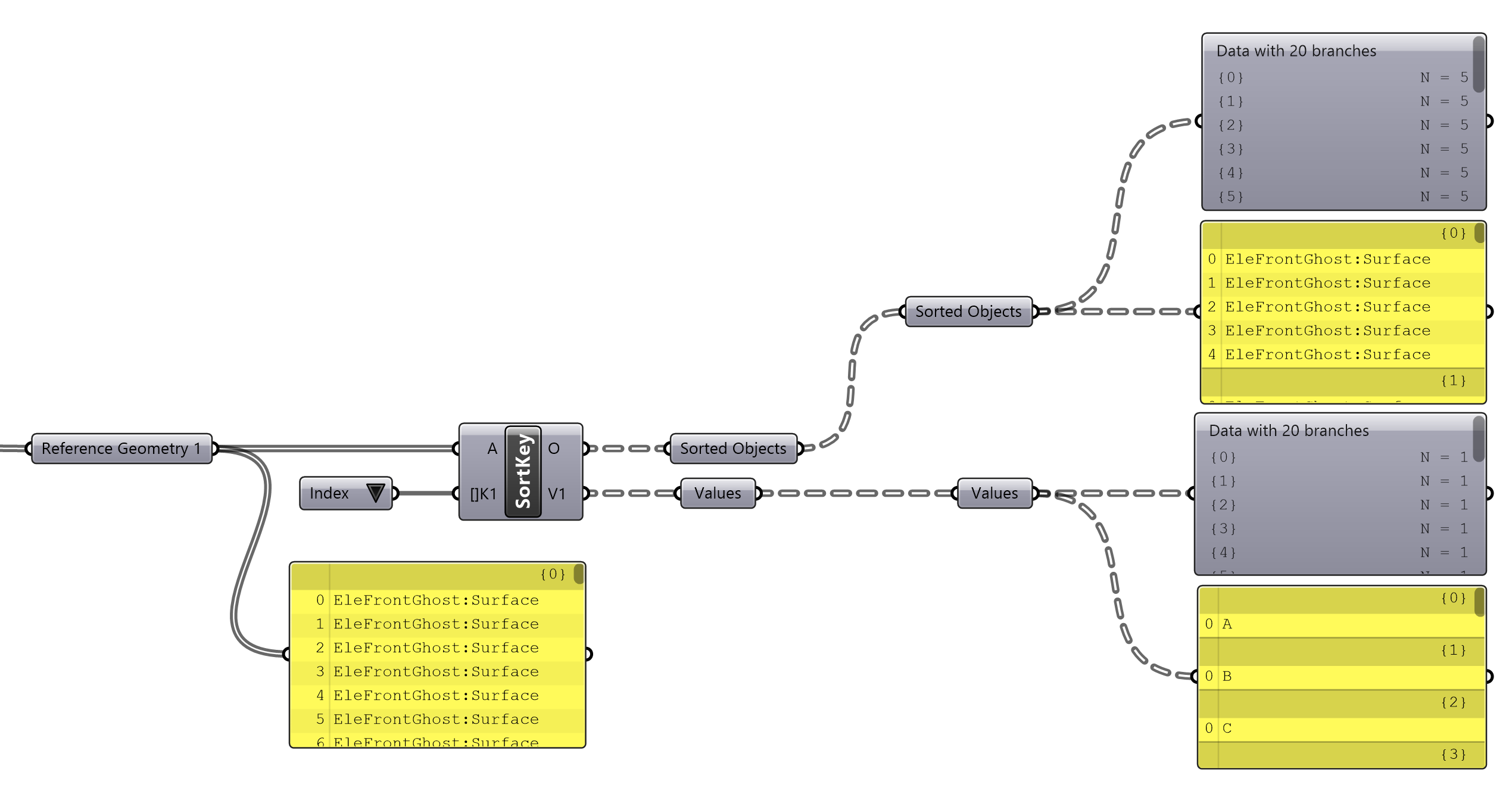 Sorting by a single key
The insert parameter option allows us to sort by any number of keys. In the previous example, each branch contained all the geometry per Index value, however by adding the Level key as a second key to sort by, the component will then sort each attributed object within these branches by their level. This is reflected in the tree, where the first layer of the tree represents an object’s Index, and the second layer the Level.
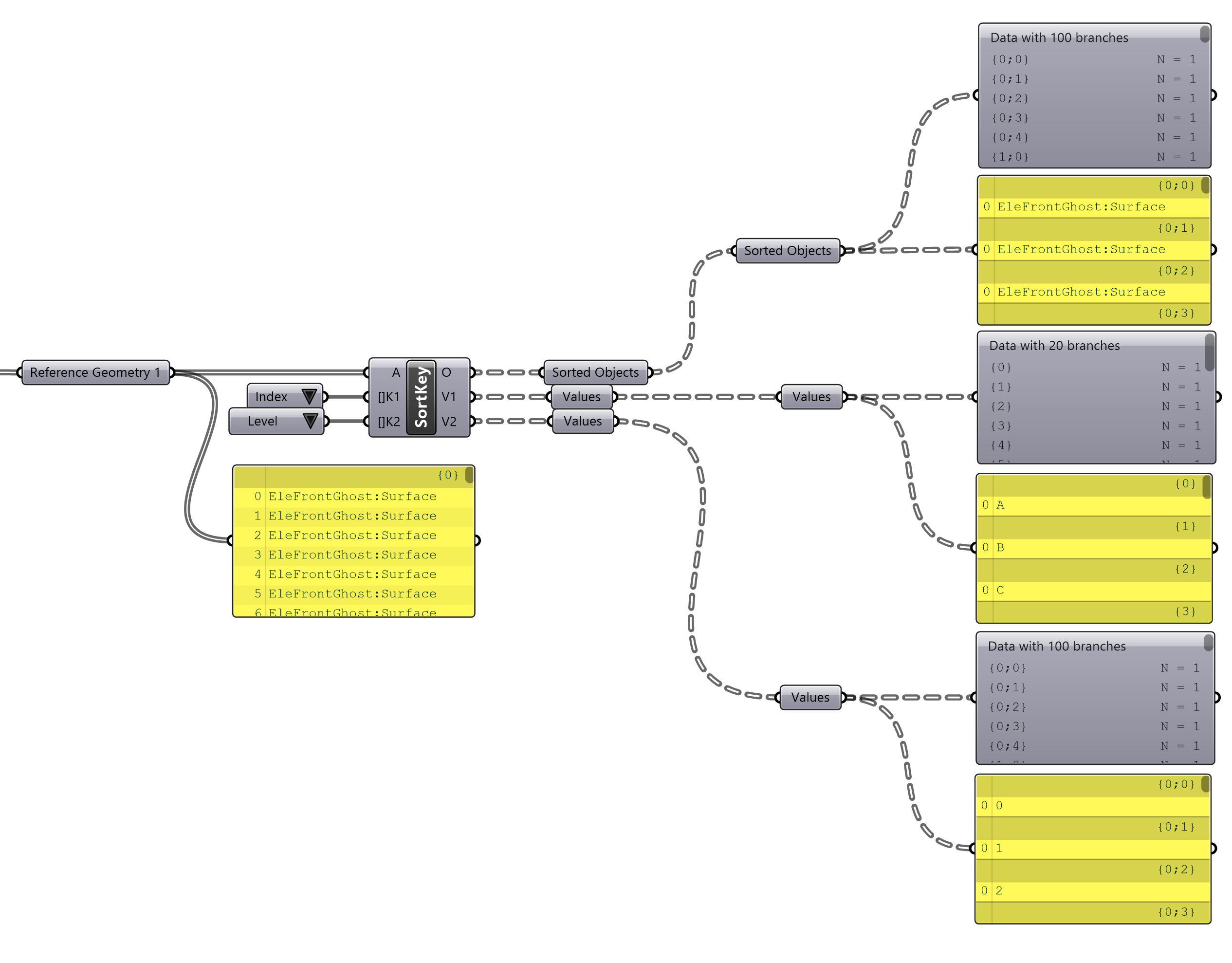 Sorting by multiple keys
Parallel Sorting
Combining the Sort by Key with the Filter by User Attributes can be very powerful when we want to sort two streams of objects in parallel.
Take the following example, there are two streams of objects. Applying two Sort by Key components gives two similar trees, however, by checking the value outputs its clear that the trees do not in fact align. Since the second stream of objects does not have any attributed geometry with Index “B” present, Branch 1 from Stream 2 skips and goes straight to “C”.
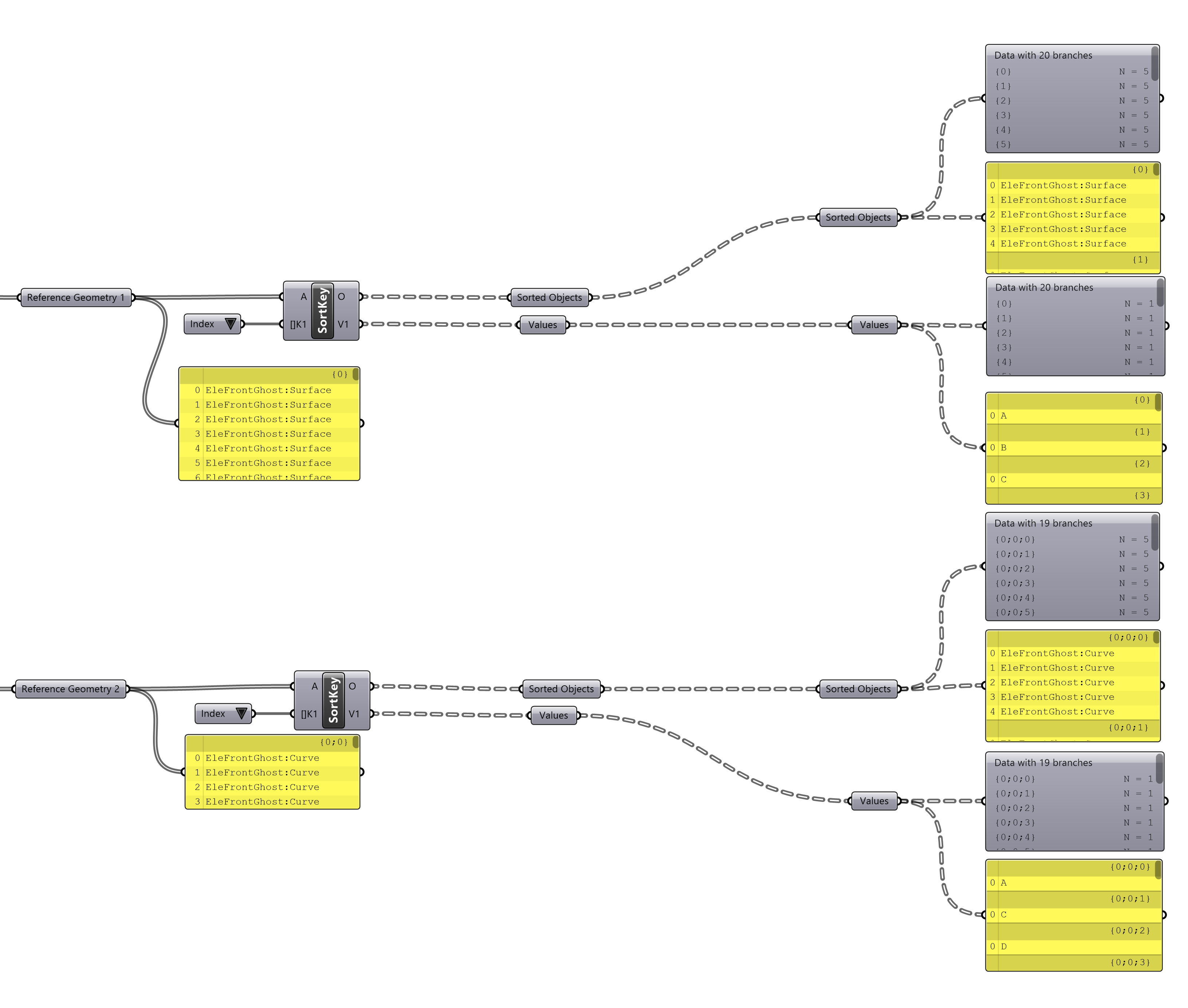 Sorting two streams separately
In this image, the output from Stream 1 is fed into a Filter by User Attribute component for Stream 2, the result is that the filter component still creates a branch for Index “B”. While there are no items to fill that branch, it does mean that the trees are still parallel, providing more robustness. If Stream 1 is missing values that are present in Stream 2, they will simply be filtered out. Because of this, conceptually Stream one can be considered the “driver” of the script. Conventionally, this role is applied to geometry that will be operated on.
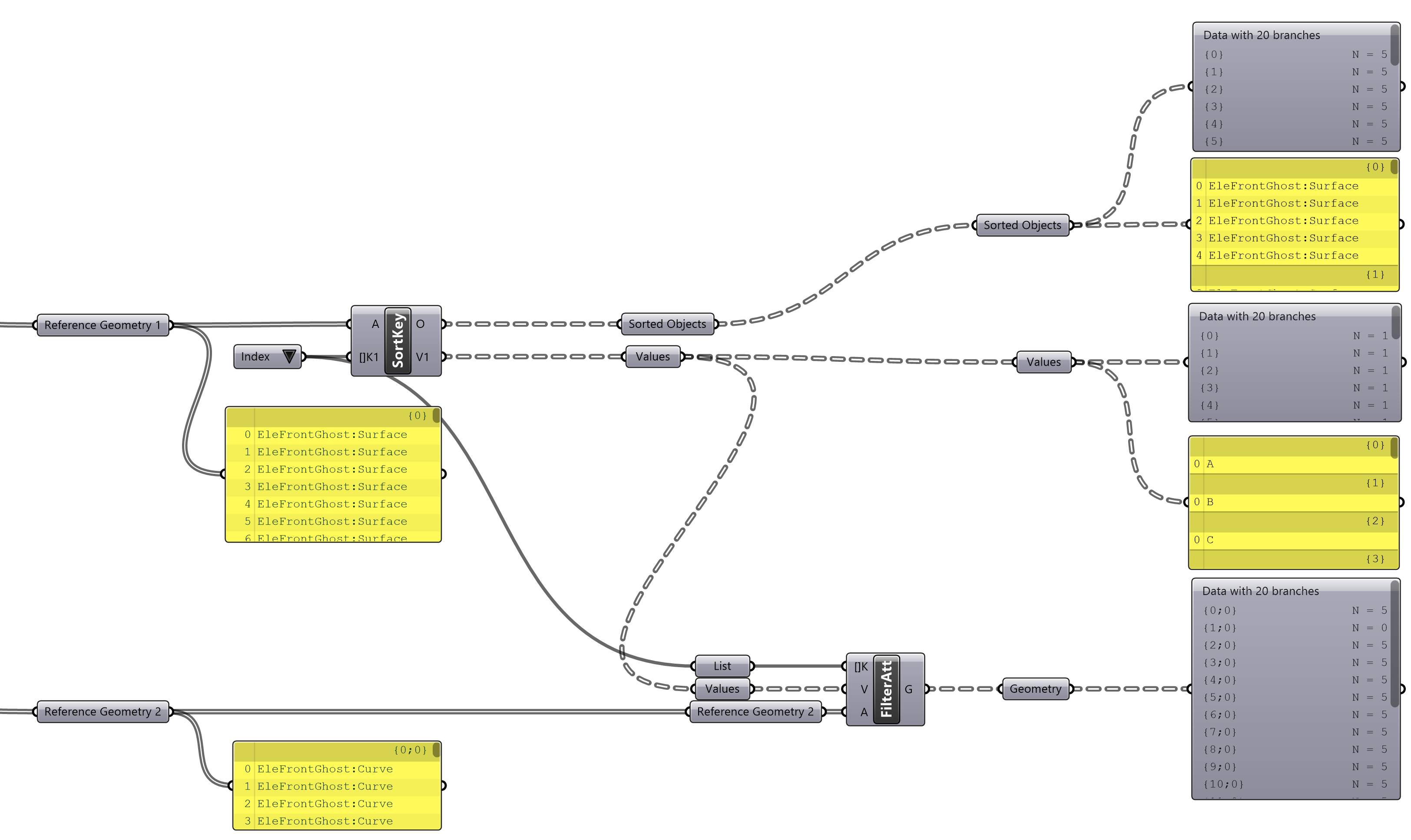 Sorting two streams in parallel using
 Filter Attributes
This technique can be used for as many keys as desired, however in order to avoid repetition it is important that the key used to filter data is more granular than the other keys when it is applied to a flat list. Panel_ID is used in this example, which concatinates the Level and Index values in a single value.
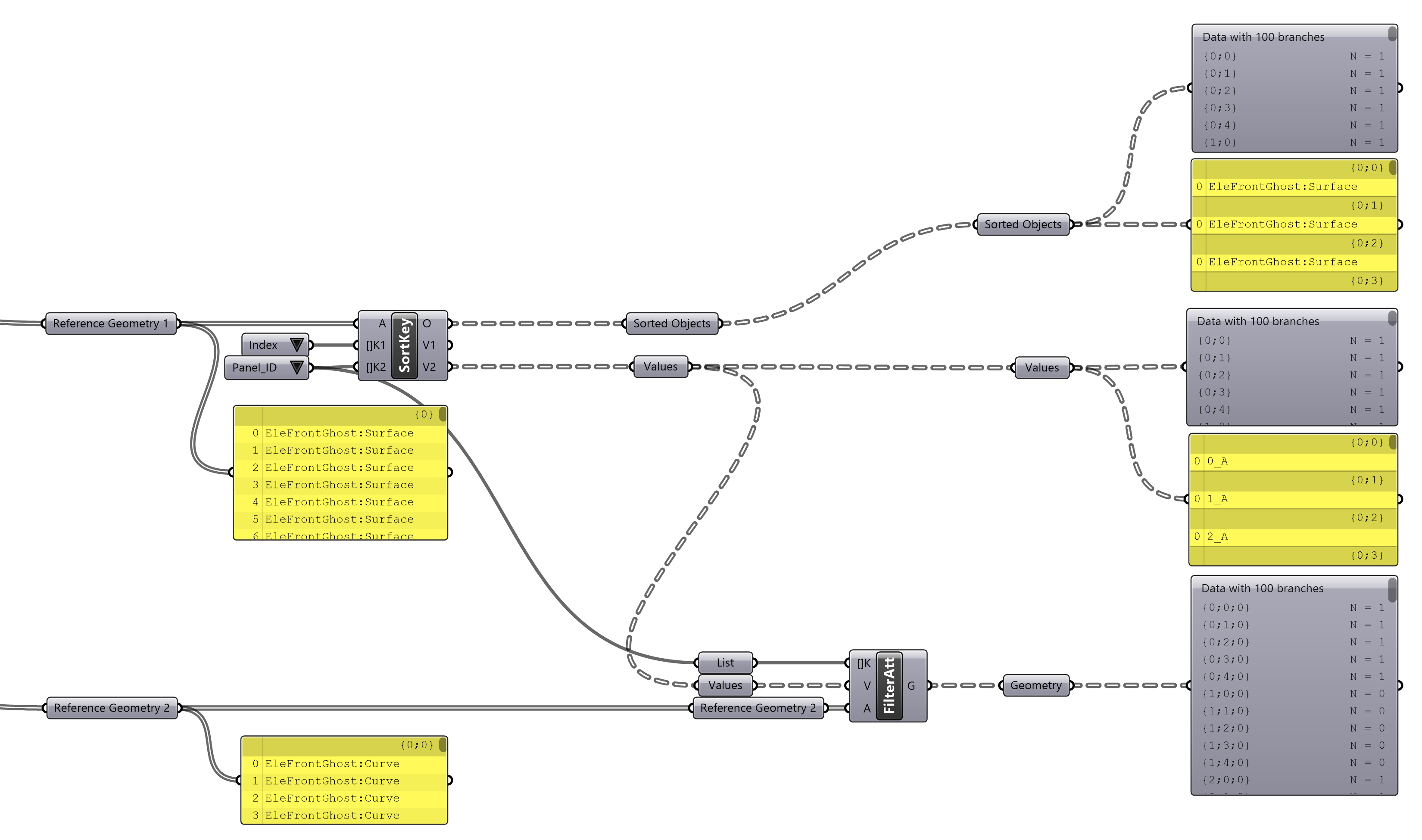 Sorting two streams in parallel by two keys using
 Filter Attributes